Tag: Compute node

  • Step-by-step Guide of Exadata Snapshot Based Backup of Compute Node to NFS Share

    Step-by-step Guide of Exadata Snapshot Based Backup of Compute Node to NFS Share


    Backing up file systems on Oracle Exadata compute can be a daunting task if you are unaware of the prerequisites and best practices. To help you backup your file systems effectively and with least discrepancies, we are bringing you this interesting step-by-step guide on how to back up your file system using Oracle Exadata Sanpshot Based Backup of Compute Node to NFS Share    


    It is very important to take file system backup on Oracle Exadata compute nodes before we make any major changes to the operating system or critical software. On Oracle Exadata Compute nodes / (root) and /u01 file systems contains the operating system and GI/DB software respectively. These are the most critical file systems on Oracle Exadata computes.


    By default, the / (root) and /u01 file system are sized 30GB and 100GB respectively.


    Scenarios in which we must take file system backup are:


    • – Operating System Patching or Upgrade
    •  
    • – Grid Infrastructure Patching or Upgrade
    •  
    • – Database Patching or Upgrade
    •  
    • – Operating System configuration changes
    •  
    • – Increasing/decreasing file system size


    In this article, we will demonstrate how to backup file system on Oracle Exadata Compute nodes running Linux Operating System to external storage NFS Share.
    eBook - Oracle Exadata X8M Patching Recipes | Netsoftmate

    Environment Details


    Exadata Model

    X4-2 Half Rack HP 4 TB

    Exadata Components

    4 – Compute nodes, 7 – Storage cells & 2 – IB switches

    Exadata Storage cells

    DBM01CEL01 – DBM01CEL07

    Exadata Compute nodes

    DBM01DB01 – DBM01DB04

    Exadata Software Version

    19.2.3.0

    Exadata DB Version

    11.2.0.4.180717


    Prerequisites


    • – Root user access on Compute nodes
    •  
    • – NFS mount with sufficient storage to storing file system backup

    Current root and /u01 file system sizes


    [root@ip01db01 ~]# df -h / /u01

    Filesystem Size  Used Avail Use% Mounted on

    /dev/mapper/VGExaDb-LVDbSys1   59G   39G   18G  70% /

    /dev/mapper/VGExaDb-LVDbOra1  197G  171G   17G  92% /u01

    NFS share details


    10.10.10.1:/nfs/backup/


    • 1. As root user, log in to the Exadata Compute node you wish to backup


    [root@ip01db01 ~]# id root

    uid=0(root) gid=0(root) groups=0(root),1(bin),2(daemon),3(sys),4(adm),6(disk),10(wheel)


    • 2. Create a mount point to mount NFS share


    [root@dm01db01 ~]# mkdir -p /mnt/backup

    [root@dm01db01 ~]# mount -t nfs -o rw,intr,soft,proto=tcp,nolock 10.10.10.1:/nfs/backup/ /mnt/backup


    3. Determine the file system type extension root and u01 file system


    [root@ip01db01 ~]# mount -l

    sysfs on /sys type sysfs (rw,relatime)

    proc on /proc type proc (rw,relatime)

    devtmpfs on /dev type devtmpfs (rw,nosuid,size=131804372k,nr_inodes=32951093,mode=755)

    securityfs on /sys/kernel/security type securityfs (rw,nosuid,nodev,noexec,relatime)

    tmpfs on /dev/shm type tmpfs (rw,size=264225792k)

    /dev/mapper/VGExaDb-LVDbSys1 on / type ext3 (rw,relatime,errors=continue,barrier=1,data=ordered) [DBSYS]

    /dev/mapper/VGExaDb-LVDbOra1 on /u01 type ext3 (rw,nodev,relatime,errors=continue,barrier=1,data=ordered) [DBORA]

    /dev/sda1 on /boot type ext3 (rw,nodev,relatime,errors=continue,barrier=1,data=ordered) [BOOT]


    4.  Note down the file system type for root and /u01: ext3. Take a snapshot-based of the root and u01 directories, Label the snapshot and Mount the snapshot


    [root@dm01db01 ~]# lvcreate -L5G -s -n root_snap /dev/VGExaDb/LVDbSys1

      Logical volume “root_snap” created.


    [root@dm01db01 ~]# lvcreate -L5G -s -n u01_snap /dev/VGExaDb/LVDbOra1

      Logical volume “u01_snap” created.

    [root@dm01db01 ~]# e2label /dev/VGExaDb/root_snap DBSYS_SNAP

    [root@dm01db01 ~]# e2label /dev/VGExaDb/u01_snap DBORA_SNAP


    [root@dm01db01 ~]# mkdir -p /mnt/snap/root

    [root@dm01db01 ~]# mkdir -p /mnt/snap/u01


    [root@dm01db01 ~]# mount /dev/VGExaDb/root_snap /mnt/snap/root -t ext3

    [root@dm01db01 ~]# mount /dev/VGExaDb/u01_snap /mnt/snap/u01 -t ext3


    [root@dm01db01 ~]# df -h /mnt/snap/root

    [root@dm01db01 ~]# df -h /mnt/snap/u01


    • 5. Change to the directory for the backup and Create the backup file


    [root@dm01db01 ~]#  cd /mnt/backup


    [root@dm01db01 ~]#  tar -pjcvf /mnt/backup/mybackup.tar.bz2 * /boot –exclude /mnt/backup/mybackup.tar.bz2 > /tmp/backup_tar.stdout 2> /tmp/backup_tar.stderr


    • 6. Monitor the /tmp/backup_tar.stderr file for errors. Errors such as failing to tar open sockets can be ignored.


    • 7. Unmount the snapshots and remove the snapshots for the root and /01 directories.


    [root@dm01db01 ~]# cd /


    [root@dm01db01 /]# umount /mnt/snap/u01


    [root@dm01db01 /]# umount /mnt/snap/root


    [root@dm01db01 /]# df -h /mnt/snap/u01

    [root@dm01db01 /]# df -h /mnt/snap/root


    [root@dm01db01 /]# ls -l /mnt/snap


    [root@dm01db01 /]# rm -rf /mnt/snap


    [root@dm01db01 /]# lvremove /dev/VGExaDb/u01_snap

    Do you really want to remove active logical volume u01_snap? [y/n]: y

      Logical volume “u01_snap” successfully removed


    [root@dm01db01 /]# lvremove /dev/VGExaDb/root_snap

    Do you really want to remove active logical volume root_snap? [y/n]: y

      Logical volume “root_snap” successfully removed


    • 8. Unmount the NFS share


    [root@dm01db01 /] umount /mnt/backup


    • Repeat the above steps on the remaining compute nodes to backup root & u01 file system

    We hope this article helps you smoothly backup your file system on Oracle Exadata Compute node running Oracle Linux using NFS Share. Stay tuned for more step-by-step guides on implementing and using Oracle Database Systems exclusively on Netsoftmate

    Netsoftmate provides the best standard services when it comes to Oracle databases management, covering all comples database products. Sign-up for a free 30 minutes call by clicking on the link below –

    Click here and fill the contact us form for a free 30 minutes consultation


  • Creating A New File System on Exadata Compute Node

    Creating A New File System on Exadata Compute Node

    When the Exadata Database Machine is installed by Oracle ACS, you will see the following default file system created:

    • /
    • /dev/shm
    • /boot
    • /u01

    There is a plenty of space available in the volume group and this can be used to increase the existing
    file system size or you can create a new file system.


    In this article we will demonstrate how to create a new file system (named /u02) on Exadata Compute
    node.

    • Connect to the compute node as root user

    login as: rootroot@dm01db01’s password:
    Last login: Mon Nov 19 13:11:39 2018 from 10.xx.xxx.xxx


    • List the exisint file system on Exadata Compute node

    [root@dm01db01 ~]# df -h
    Filesystem            Size  Used Avail Use% Mounted on
    /dev/mapper/VGExaDb-LVDbSys1
                           59G   38G   19G  67% /
    tmpfs                 252G  6.0M  252G   1% /dev/shm
    /dev/sda1             480M   63M  393M  14% /boot
    /dev/mapper/VGExaDb-LVDbOra1
                          197G   97G   91G  52% /u01


    • Get the free space available in the volume group

    [root@dm01db01 ~]# vgdisplay | grep Free
      Free  PE / Size       337428 / 1.29 TiB


    • List the physical volumes and logical volumes

    [root@dm01db01 ~]# pvs
     PV         VG      Fmt  Attr PSize   PFree
      /dev/sda2  VGExaDb lvm2 a–u 557.36g 202.36g
      /dev/sda3  VGExaDb lvm2 a–u   1.09t   1.09t

    [root@dm01db01 ~]# lvs
      LV                 VG      Attr       LSize   Pool Origin   Data%  Meta%  Move Log Cpy%Sync Convert
      LVDbOra1           VGExaDb owi-aos— 200.00g
      LVDbSwap1          VGExaDb -wi-ao—-  24.00g
      LVDbSys1           VGExaDb owi-aos—  60.00g
      LVDbSys2           VGExaDb -wi-a—–  60.00g
      LVDoNotRemoveOrUse VGExaDb -wi-a—–   1.00g
      root_snap          VGExaDb swi-I-s—   5.00g      LVDbSys1 100.00
      u01_snap           VGExaDb swi-I-s—   5.00g      LVDbOra1 100.00

     
    • Create a new logical volume of your desired size. Here we are creating a logical volume of 100GB size

    [root@dm01db01 ~]# lvcreate -L100GB -n LVDbOra2 VGExaDb
      Logical volume “LVDbOra2” created.


    • List the logical volumes and ensure our new logical volume is displayed

    [root@dm01db01 ~]# lvs
      LV                 VG      Attr       LSize   Pool Origin   Data%  Meta%  Move Log Cpy%Sync Convert
      LVDbOra1           VGExaDb owi-aos— 200.00g
      LVDbOra2           VGExaDb -wi-a—– 100.00g
      LVDbSwap1          VGExaDb -wi-ao—-  24.00g
      LVDbSys1           VGExaDb owi-aos—  60.00g
      LVDbSys2           VGExaDb -wi-a—–  60.00g
      LVDoNotRemoveOrUse VGExaDb -wi-a—–   1.00g
      root_snap          VGExaDb swi-I-s—   5.00g      LVDbSys1 100.00
      u01_snap           VGExaDb swi-I-s—   5.00g      LVDbOra1 100.00


    • Now create the new file system as shown below

    [root@dm01db01 ~]# mkfs.ext3 -j -L u02 /dev/VGExaDb/LVDbOra2
    mke2fs 1.43-WIP (20-Jun-2013)
    Filesystem label=u02
    OS type: Linux
    Block size=4096 (log=2)
    Fragment size=4096 (log=2)
    Stride=0 blocks, Stripe width=0 blocks
    6553600 inodes, 26214400 blocks
    1310720 blocks (5.00%) reserved for the super user
    First data block=0
    Maximum filesystem blocks=4294967296
    800 block groups
    32768 blocks per group, 32768 fragments per group
    8192 inodes per group
    Superblock backups stored on blocks:
            32768, 98304, 163840, 229376, 294912, 819200, 884736, 1605632, 2654208,
            4096000, 7962624, 11239424, 20480000, 23887872

    Allocating group tables: done
    Writing inode tables: done
    Creating journal (32768 blocks): done
    Writing superblocks and filesystem accounting information: done


    • Mount the new file system

    [root@dm01db01 ~]# mkdir /u02

    [root@dm01db01 ~]# mount -t ext3 /dev/VGExaDb/LVDbOra2 /u02


    • Verify that the new file system is mounted and accessible

    [root@dm01db01 ~]# df -kh
    Filesystem            Size  Used Avail Use% Mounted on
    /dev/mapper/VGExaDb-LVDbSys1
                           59G   38G   19G  67% /
    tmpfs                 252G  6.0M  252G   1% /dev/shm
    /dev/sda1             480M   63M  393M  14% /boot
    /dev/mapper/VGExaDb-LVDbOra1
                          197G   97G   91G  52% /u01
    /dev/mapper/VGExaDb-LVDbOra2
                           99G   60M   94G   1% /u02


    Conclusion
    In this article we have learned how to create a new file system on Exadata Compute node using the free space available in the volume group.

    eBook - Oracle Exadata X8M Patching Recipes | Netsoftmate

  • Exadata – Display and Clear Fault using Fault Manager (faultmgmt)

    Exadata Database Machine consists of a storage grid, compute grid, and network grid. Each grid, or hardware layer, is built with multiple high-performing, industry-standard Oracle servers to provide hardware and system fault tolerance. The hardware components are subjected to failure. Most common failure on Exadata is Hard Disk failure on Storage Cells. With the latest generation of Exadata the hardware failures are very minimal and less troublesome. 


    The Exadata Storage Cells and Compute nodes consists of several hardware components, such as:

    • Hard disk
    • Flash disk 
    • Physical Memory
    • Processor  
    • IB ports
    • Mother Board
    • Batteries
    • Power Supply
    • and So on


    In this article we will demonstrate how to view the hardware fault and clear it using ILOM fault manager (faultmgmt).


    Steps to display and clear hardware fault using faultmgmt:


    Step 1: Login to compute node ILOM where the fault occurred


    [root@dm01db01 ~]# ssh dm01db02-ilom
    Password:


    Oracle(R) Integrated Lights Out Manager


    Version 4.0.0.24 r121523


    Copyright (c) 2017, Oracle and/or its affiliates. All rights reserved.


    Warning: HTTPS certificate is set to factory default.


    Hostname: dm01db02-ilom


    Step 2: Check if the fault manager is supported. If you get the output like below then fault manager is supported.

    -> show /SP/faultmgmt/shell


     /SP/faultmgmt/shell
        Targets:


        Properties:


        Commands:
            cd
            show
            start


    Step 3: Start the fault manager shell


    -> start /SP/faultmgmt/shell
    Are you sure you want to start /SP/faultmgmt/shell (y/n)? y


    Step 4: Execute the following command to display the fault. Here we can see that there is no issue with hardware but he ILOM file system is 100% full.


    faultmgmtsp> fmadm faulty
    ——————- ———————————— ————– ——–
    Time                UUID                                 msgid          Severity
    ——————- ———————————— ————– ——–
    2018-06-17/15:55:32 2a854ad2-4a31-e829-e26c-c84ba212d7f2 ILOM-8000-JV   Major


    Problem Status           : open
    Diag Engine              : fdd 1.0
    System
       Manufacturer          : Oracle Corporation
       Name                  : Exadata X5-2
       Part_Number           : Exadata X5-2
       Serial_Number         : AK00XXXXXX


    System Component
       Manufacturer          : Oracle Corporation
       Name                  : ORACLE SERVER X5-2
       Part_Number           : 7090664
       Serial_Number         : 15XXXXXXXX
       Firmware_Manufacturer : Oracle Corporation
       Firmware_Version      : (ILOM)4.0.0.24
       Firmware_Release      : (ILOM)2017.09.23


    —————————————-
    Suspect 1 of 1
       Problem class  : defect.ilom.fs.full
       Certainty      : 100%
       Affects        : /SYS/SP
       Status         : faulted


       FRU
          Status            : faulty
          Location          : /SYS/SP
          Manufacturer      : Oracle Corporation
          Name              : SP
          Part_Number       : PILOT3
          Chassis
             Manufacturer   : Oracle Corporation
             Name           : ORACLE SERVER X5-2
             Part_Number    : 7090664
             Serial_Number  : 1547NM10CX


    Description : An ILOM filesystem has exceeded the filesystem capacity
                  limit.


    Response    : The chassis wide service-required LED will be illuminated.


    Impact      : ILOM commands may fail, especially those which make
                  configuration changes.


    Action      : Please refer to the associated reference document at
                  http://support.oracle.com/msg/ILOM-8000-JV for the latest
                  service procedures and policies regarding this diagnosis.


    Step 5: Execute the below command to clear the fault


    faultmgmtsp> fmadm acquit UUID –> Get the UUID from the from output of the above command.


    faultmgmtsp> fmadm acquit 2a854ad2-4a31-e829-e26c-c84ba212d7f2


    Step 6: Verify that the fault is cleared


    faultmgmtsp> fmadm faulty
    No faults found


    Step 7: Exit from the fault manager


    faultmgmtsp> exit


    Step 8: Reset the ILOM service processor


    -> reset /SP
    Are you sure you want to reset /SP (y/n)? y
    Performing reset on /SP


    Step 9: Exit from the ILOM


    -> exit
    Connection to dm01db02-ilom closed.


    Step 10: Connec to ILOM and verify the ILOM SP is restarted


    [root@dm01db01 ~]# ssh dm01db02-ilom
    Password:


    Oracle(R) Integrated Lights Out Manager


    Version 4.0.0.24 r121523


    Copyright (c) 2017, Oracle and/or its affiliates. All rights reserved.


    Warning: HTTPS certificate is set to factory default.


    Hostname: dm01db02-ilom


    -> show -d properties /SP/clock uptime


     /SP/clock
        Properties:
            uptime = 0 days, 00:08:02


    Conclusion


    In this article we have learned how to display and clear a fault using fault manager (faultmgmt). The Fault Management Shell is the preferred method for displaying the details of a diagnosed fault. faultmgmt support for command shell varies depending ILOM release level and server product model. 

  • ASRexacheck Utility – Validate Exadata Oracle ASR Deployment

    ASRexacheck utility can be executed to verify the ASR deployment. Oracle Auto Service Request (ASR) is a secure, scalable, customer-installable software feature of warranty and Oracle Support Services that provides auto-case generation when common hardware component faults occur.


    It is important to note that, ASR is not a system management or monitoring tool. It is developed & designed to open Oracle Automatic Service Requests when specific hardware faults are detected on Oracle products that are qualified for ASR. Oracle Exadata Database Machine is a qualified production for Oracle ASR.


    You can execute ASRexacheck in any of the following 2 ways:

    • As part of the Oracle Exadata Database Machine exachk
    • Stand-alone mode on a single node or multiple nodes

    In this article we will demonstrate how to execute ASRexacheck on in Stand-alone mode on a single server and mutliple servers using dcli.


    • Ensure that the ASRexacheck verison is 4.x. If is is older than 4.x, then download the latest ASRexacheck from the MOS note below.

    Engineered Systems ASR Configuration Check tool (asrexacheck version 4.x) (Doc ID 2103715.1)

    • ASRexacheck Download and & Upgrade steps
      • Download the asrexacheck zip file from the MOS note.
      • Copy the asrexacheck zip to the following directory: /opt/oracle.SupportTools/
      • Unzip the asrexacheck utility
              # cd /opt/oracle.SupportTools/
              # unzip asrexacheck_43.zip
      • Change the running permissions to execute

                        # chmod 755 /opt/oracle.SupportTools/asrexacheck

      • Verify the asrexacheck version

                        # /opt/oracle.SupportTools/asrexacheck –v


    • ASRexacheck execution On a single Exadata server

    [root@dm01db01 oracle.SupportTools]# /opt/oracle.SupportTools/asrexacheck
    asrexacheck version: 4.0
    Current time: 2018-04-09 10:42:51


    ================================================================================
    SYSTEM CONFIGURATION
    ================================================================================
    Product name           : Exadata X5-2
    Product serial         : AK003XXXXX
    Component name         : ORACLE SERVER X5-2
    Component serial       : 1546XX111X
    Engineered System type : Exadata
    Server type            : COMPUTE
    Image version          : 18.1.4.0.0.180125.3
    OS IP Address          : 10.10.10.1
    OS Hostname            : dm01db01
    OS version             : 4.1.12-94.7.8.el6uek.x86_64
    ILOM IP Address        : 10.10.10.14
    ILOM Hostname          : dm01db01-ilom
    ILOM version           : 4.0.0.24


    ================================================================================
    NETWORK
    ================================================================================
    Interface  IP Address                      Hostname        Route   fromIP
    ——————————————————————————–
    bondeth0   10.20.16.1                     dm0101          NO
    eth0       10.10.10.1                     dm01db01        YES


    ================================================================================
    ASR
    ================================================================================
    Destination     Hostname        Rule Type  DBMCLI Port Level   Community Version
    ——————————————————————————–
    10.10.10.1     dm01db01          1               8162 minor   LocalMSV3user       3
    192.168.10.1  oragwserver                   YES   162           public
    192.168.10.1  oragwserver        2                162 minor     public      2c


    [OK] Exactly one OS and ILOM IP coincide (192.168.10.1)
    * Validation:
    [OK] OS Test event sent to 192.168.10.1:162
    [OK] ILOM Test event sent to 192.168.10.1:162


    Time elapsed script execution: 00:04:44
    Zipfile /var/log/asrexacheck/asrexacheck_dm01db01_20180409T154251.zip of the outputs created


    • ASRexacheck execution on all Exadata Compute nodes

    [root@dm01db01 oracle.SupportTools]# dcli -g ~/dbs_group -l root ‘/opt/oracle.SupportTools/asrexacheck’
    dm01db01: asrexacheck version: 4.0
    dm01db01: Current time: 2018-04-09 10:42:51
    dm01db01:
    dm01db01: ================================================================================
    dm01db01: SYSTEM CONFIGURATION
    dm01db01: ================================================================================
    dm01db01: Product name           : Exadata X5-2
    dm01db01: Product serial         : AK003XXXXX
    dm01db01: Component name         : ORACLE SERVER X5-2
    dm01db01: Component serial       : 1546XX111X
    dm01db01: Engineered System type : Exadata
    dm01db01: Server type            : COMPUTE
    dm01db01: Image version          : 18.1.4.0.0.180125.3
    dm01db01: OS IP Address          : 10.10.10.1
    dm01db01: OS Hostname            : dm01db01
    dm01db01: OS version             : 4.1.12-94.7.8.el6uek.x86_64
    dm01db01: ILOM IP Address        : 10.10.10.14
    dm01db01: ILOM Hostname          : dm01db01-ilom
    dm01db01: ILOM version           : 4.0.0.24
    dm01db01:
    dm01db01: ================================================================================
    dm01db01: NETWORK
    dm01db01: ================================================================================
    dm01db01: Interface  IP Address                      Hostname        Route   fromIP
    dm01db01: ——————————————————————————–
    dm01db01: bondeth0   10.20.16.1                     dm0101          NO
    dm01db01: eth0       10.10.10.1                     dm01db01        YES
    dm01db01:
    dm01db01: ================================================================================
    dm01db01: ASR
    dm01db01: ================================================================================
    dm01db01: Destination     Hostname        Rule Type  DBMCLI Port Level   Community Version
    dm01db01: ——————————————————————————–
    dm01db01: 10.10.10.1     dm01db01          1               8162 minor   LocalMSV3user       3
    dm01db01: 192.168.10.1  oragwserver                   YES   162           public
    dm01db01: 192.168.10.1  oragwserver        2                162 minor     public      2c
    dm01db01:
    dm01db01: [OK] Exactly one OS and ILOM IP coincide (192.168.10.1)
    dm01db01: * Validation:
    dm01db01: [OK] OS Test event sent to 192.168.10.1:162
    dm01db01: [OK] ILOM Test event sent to 192.168.10.1:162
    dm01db01:
    dm01db01: Time elapsed script execution: 00:04:44
    dm01db01: Zipfile /var/log/asrexacheck/asrexacheck_dm01db01_20180409T154251.zip of the outputs created
    dm01db02: asrexacheck version: 4.0
    dm01db02: Current time: 2018-04-09 10:42:51
    dm01db02:
    dm01db02: ================================================================================
    dm01db02: SYSTEM CONFIGURATION
    dm01db02: ================================================================================
    dm01db02: Product name           : Exadata X5-2
    dm01db02: Product serial         : AK003XXXXX
    dm01db02: Component name         : ORACLE SERVER X5-2
    dm01db02: Component serial       : 1546XX11XX
    dm01db02: Engineered System type : Exadata
    dm01db02: Server type            : COMPUTE
    dm01db02: Image version          : 18.1.4.0.0.180125.3
    dm01db02: OS IP Address          : 10.10.10.2
    dm01db02: OS Hostname            : dm01db02
    dm01db02: OS version             : 4.1.12-94.7.8.el6uek.x86_64
    dm01db02: ILOM IP Address        : 10.10.10.15
    dm01db02: ILOM Hostname          : dm01db02-ilom
    dm01db02: ILOM version           : 4.0.0.24
    dm01db02:
    dm01db02: ================================================================================
    dm01db02: NETWORK
    dm01db02: ================================================================================
    dm01db02: Interface  IP Address                      Hostname        Route   fromIP
    dm01db02: ——————————————————————————–
    dm01db02: bondeth0   10.20.16.3                     dm0102          NO
    dm01db02: eth0       10.10.10.2                     dm01db02        YES
    dm01db02:
    dm01db02: ================================================================================
    dm01db02: ASR
    dm01db02: ================================================================================
    dm01db02: Destination     Hostname        Rule Type  DBMCLI Port Level   Community Version
    dm01db02: ——————————————————————————–
    dm01db02: 10.10.10.2     dm01db02          1               8162 minor   LocalMSV3user       3
    dm01db02: 192.168.10.1  oragwserver                   YES   162           public
    dm01db02: 192.168.10.1  oragwserver        2                162 minor     public      2c
    dm01db02:
    dm01db02: [OK] Exactly one OS and ILOM IP coincide (192.168.10.1)
    dm01db02: * Validation:
    dm01db02: [OK] OS Test event sent to 192.168.10.1:162
    dm01db02: [OK] ILOM Test event sent to 192.168.10.1:162
    dm01db02:
    dm01db02: Time elapsed script execution: 00:04:46
    dm01db02: Zipfile /var/log/asrexacheck/asrexacheck_dm01db02_20180409T154251.zip of the outputs created
    dm01db03: asrexacheck version: 4.0
    dm01db03: Current time: 2018-04-09 10:42:51
    dm01db03:
    dm01db03: ================================================================================
    dm01db03: SYSTEM CONFIGURATION
    dm01db03: ================================================================================
    dm01db03: Product name           : Exadata X5-2
    dm01db03: Product serial         : AK003XXXXX
    dm01db03: Component name         : ORACLE SERVER X5-2
    dm01db03: Component serial       : 1547XX10XX
    dm01db03: Engineered System type : Exadata
    dm01db03: Server type            : COMPUTE
    dm01db03: Image version          : 18.1.4.0.0.180125.3
    dm01db03: OS IP Address          : 10.10.10.3
    dm01db03: OS Hostname            : dm01db03
    dm01db03: OS version             : 4.1.12-94.7.8.el6uek.x86_64
    dm01db03: ILOM IP Address        : 10.10.10.16
    dm01db03: ILOM Hostname          : dm01db03-ilom
    dm01db03: ILOM version           : 4.0.0.24
    dm01db03:
    dm01db03: ================================================================================
    dm01db03: NETWORK
    dm01db03: ================================================================================
    dm01db03: Interface  IP Address                      Hostname        Route   fromIP
    dm01db03: ——————————————————————————–
    dm01db03: bondeth0   10.20.16.5                     dm0103          NO
    dm01db03: eth0       10.10.10.3                     dm01db03        YES
    dm01db03:
    dm01db03: ================================================================================
    dm01db03: ASR
    dm01db03: ================================================================================
    dm01db03: Destination     Hostname        Rule Type  DBMCLI Port Level   Community Version
    dm01db03: ——————————————————————————–
    dm01db03: 10.10.10.3     dm01db03          1               8162 minor   LocalMSV3user       3
    dm01db03: 192.168.10.1  oragwserver                   YES   162           public
    dm01db03: 192.168.10.1  oragwserver        2                162 minor     public      2c
    dm01db03:
    dm01db03: [OK] Exactly one OS and ILOM IP coincide (192.168.10.1)
    dm01db03: * Validation:
    dm01db03: [OK] OS Test event sent to 192.168.10.1:162
    dm01db03: [OK] ILOM Test event sent to 192.168.10.1:162
    dm01db03:
    dm01db03: Time elapsed script execution: 00:04:43
    dm01db03: Zipfile /var/log/asrexacheck/asrexacheck_dm01db03_20180409T154251.zip of the outputs created


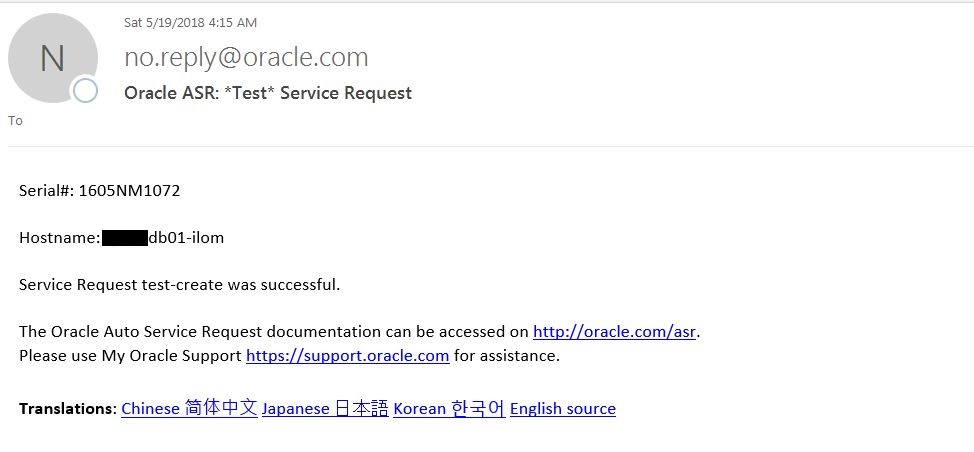
    • At the end of successful ASRexacheck execution, you will receive 2 Test ASR emails, one from Management host and another from Management ILOM host. If you don’t receive the Test ASR emails then you must work with Oracle ASR Management team to resolve the ASR Manager issue.

    • You can also execute ASRexacheck on Exadata Storage cells using below commands.

    [root@dm01cel01 ~]# /opt/oracle.SupportTools/asrexacheck
    [root@dm01db01 ~]# dcli -g ~/cell_group -l root ‘/opt/oracle.SupportTools/asrexacheck’


    Conclusion


    In this article we have learned how to verify ASR deployment using ASRexacheck utility. ASR is not a monitoring tool, it is designed to open ASR when specific hardware faults are detected on Oracle products that are qualified for ASR. Oracle Exadata Database Machine is a qualified production for Oracle ASR.

  • Exadata Setup SSH Equivalence

    You want to execute Operating System or Exadata commands on multiple Exadata Compute nodes and Storage Cell in parallel. To accomplish this you must setup passwordless SSH across compute nodes and storage cells.


    If SSH equivalence is NOT setup and you execute the dcli command you will see the follow messages. This mean the SSH equivalence is not configured.


    [root@dm01db01 ~]# dcli -g dbs_group -l root ‘uptime’
    The authenticity of host ‘dm01db03 (10.10.10.195)’ can’t be established.
    RSA key fingerprint is 40:81:3c:6d:ef:e7:1f:d7:a0:df:eb:f5:ea:92:a5:db.
    Are you sure you want to continue connecting (yes/no)? The authenticity of host ‘dm01db05 (10.10.10.197)’ can’t be established.
    RSA key fingerprint is 1b:95:47:0b:92:b4:13:9f:55:b7:a3:2a:56:27:9f:1c.
    Are you sure you want to continue connecting (yes/no)? The authenticity of host ‘dm01db02 (10.10.10.194)’ can’t be established.
    RSA key fingerprint is e1:0d:90:46:16:88:74:01:02:5a:11:90:63:b1:6b:1c.
    Are you sure you want to continue connecting (yes/no)? The authenticity of host ‘dm01db01 (10.10.10.193)’ can’t be established.
    RSA key fingerprint is 2b:6f:43:4b:86:29:bb:ed:a6:03:c5:34:75:cf:45:34.
    Are you sure you want to continue connecting (yes/no)? The authenticity of host ‘dm01db04 (10.10.10.196)’ can’t be established.
    RSA key fingerprint is 44:a7:ad:65:c3:1c:fb:0b:0b:28:2c:b6:a5:f3:59:99.
    Are you sure you want to continue connecting (yes/no)? The authenticity of host ‘dm01db07 (10.10.10.199)’ can’t be established.
    RSA key fingerprint is 25:5f:9a:e6:a4:7a:13:ba:e2:e7:7d:2e:79:53:49:2b.
    Are you sure you want to continue connecting (yes/no)? root@dm01db06’s password: root@dm01db08’s password:


    In this article we will demonstrate how to setup SSH equivalence on Exadata Database Machine.


    Steps to Setup SSH Equivalence


    1. Create the following files if doesn’t exist


    [root@dm01db08 ~]# cat dbs_group
    dm01db01
    dm01db02
    dm01db03
    dm01db04
    dm01db05
    dm01db06
    dm01db07
    dm01db08


    [root@dm01db08 ~]# cat cell_group
    dm01cel01
    dm01cel02
    dm01cel03
    dm01cel04
    dm01cel05
    dm01cel06
    dm01cel07


    [root@dm01db08 ~]# cat all_group
    dm01db01
    dm01db02
    dm01db03
    dm01db04
    dm01db05
    dm01db06
    dm01db07
    dm01db08
    dm01cel01
    dm01cel02
    dm01cel03
    dm01cel04
    dm01cel05
    dm01cel06
    dm01cel07
    dm01sw-iba01
    dm01sw-ibb01


    2. Navigate to Support directory on Compute node 1 as shown below

    [root@dm01db01 ~]# cd /opt/oracle.SupportTools/

    3. Oracle has provided a script *setup_ssh_eq.sh* to configure SSH equivalence across Exadata components. Execute the script as shown below. Here we are setting the SSH equivalence for root user

    [root@dm01db01 oracle.SupportTools]# ./setup_ssh_eq.sh ~/all_group root welcome1
    /root/.ssh/id_dsa already exists.
    Overwrite (y/n)?
    /root/.ssh/id_rsa already exists.
    Overwrite (y/n)?
    spawn dcli -c dm01db01 -l root -k
    dm01db01: ssh key already exists
    expect: spawn id exp4 not open
        while executing
    “expect “*?assword:*””
    spawn dcli -c dm01db02 -l root -k
    dm01db02: ssh key already exists
    expect: spawn id exp4 not open
        while executing
    “expect “*?assword:*””
    spawn dcli -c dm01db03 -l root -k
    dm01db03: ssh key already exists
    expect: spawn id exp4 not open
        while executing
    “expect “*?assword:*””
    spawn dcli -c dm01db04 -l root -k
    dm01db04: ssh key already exists
    expect: spawn id exp4 not open
        while executing
    “expect “*?assword:*””
    spawn dcli -c dm01db05 -l root -k
    dm01db05: ssh key already exists
    expect: spawn id exp4 not open
        while executing
    “expect “*?assword:*””
    spawn dcli -c dm01db06 -l root -k
    dm01db06: ssh key already exists
    expect: spawn id exp4 not open
        while executing
    “expect “*?assword:*””
    spawn dcli -c dm01db07 -l root -k
    dm01db07: ssh key already exists
    expect: spawn id exp4 not open
        while executing
    “expect “*?assword:*””
    spawn dcli -c dm01db08 -l root -k
    dm01db08: ssh key already exists
    expect: spawn id exp4 not open
        while executing
    “expect “*?assword:*””
    spawn dcli -c dm01cel01 -l root -k
    dm01cel01: ssh key already exists
    expect: spawn id exp4 not open
        while executing
    “expect “*?assword:*””
    spawn dcli -c dm01cel02 -l root -k
    dm01cel02: ssh key already exists
    expect: spawn id exp4 not open
        while executing
    “expect “*?assword:*””
    spawn dcli -c dm01cel03 -l root -k
    dm01cel03: ssh key already exists
    expect: spawn id exp4 not open
        while executing
    “expect “*?assword:*””
    spawn dcli -c dm01cel04 -l root -k
    dm01cel04: ssh key already exists
    expect: spawn id exp4 not open
        while executing
    “expect “*?assword:*””
    spawn dcli -c dm01cel05 -l root -k
    dm01cel05: ssh key already exists
    expect: spawn id exp4 not open
        while executing
    “expect “*?assword:*””
    spawn dcli -c dm01cel06 -l root -k
    dm01cel06: ssh key already exists
    expect: spawn id exp4 not open
        while executing
    “expect “*?assword:*””
    spawn dcli -c dm01cel07 -l root -k
    dm01cel07: ssh key already exists
    expect: spawn id exp4 not open
        while executing
    “expect “*?assword:*””
    spawn dcli -c dm01sw-iba01 -l root -k
    dm01sw-iba01: ssh key already exists
    expect: spawn id exp4 not open
        while executing
    “expect “*?assword:*””
    spawn dcli -c dm01sw-ibb01 -l root -k
    dm01sw-ibb01: ssh key already exists
    expect: spawn id exp4 not open
        while executing
    “expect “*?assword:*””

    4. Verify SSH equivalence is working fine

    [root@dm01db08 ~]# dcli -g ~/all_group -l root ‘uptime’
    dm01db01: 09:16:41 up 21 days, 15:47,  1 user,  load average: 1.80, 3.02, 3.35
    dm01db02: 09:16:41 up 21 days, 15:38,  0 users,  load average: 2.93, 2.44, 2.37
    dm01db03: 09:16:41 up 21 days, 15:19,  0 users,  load average: 2.16, 2.27, 2.77
    dm01db04: 09:16:41 up 21 days, 15:12,  0 users,  load average: 4.07, 4.33, 4.14
    dm01db05: 09:16:41 up 21 days, 15:09,  0 users,  load average: 2.45, 2.82, 2.75
    dm01db06: 09:16:41 up 21 days, 15:06,  0 users,  load average: 1.70, 2.04, 2.60
    dm01db07: 09:16:41 up 21 days, 15:02,  0 users,  load average: 6.39, 4.46, 4.20
    dm01db08: 09:16:41 up 21 days, 14:59,  1 user,  load average: 1.66, 1.81, 1.97
    dm01cel01: 09:16:41 up 203 days, 19:00,  0 users,  load average: 1.40, 1.97, 2.21
    dm01cel02: 09:16:41 up 203 days, 18:59,  0 users,  load average: 1.52, 2.08, 2.38
    dm01cel03: 09:16:41 up 203 days, 18:59,  0 users,  load average: 1.00, 1.71, 2.02
    dm01cel04: 09:16:41 up 203 days, 18:59,  0 users,  load average: 1.08, 1.59, 1.92
    dm01cel05: 09:16:41 up 203 days, 18:59,  0 users,  load average: 1.24, 1.53, 1.82
    dm01cel06: 09:16:41 up 203 days, 18:59,  0 users,  load average: 1.09, 1.60, 1.96
    dm01cel07: 09:16:41 up 203 days, 19:00,  0 users,  load average: 1.01, 1.37, 1.60
    dm01sw-iba01: 09:16:42 up 539 days,  6:21,  0 users,  load average: 0.79, 0.99, 1.07
    dm01sw-ibb01: 14:49:54 up 539 days,  9:43,  0 users,  load average: 1.26, 1.44, 1.41

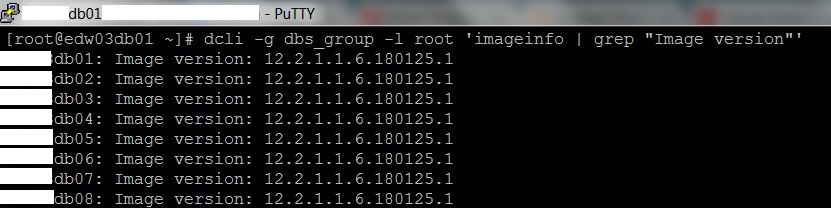
    [root@dm01db08 ~]# dcli -g dbs_group -l root ‘imageinfo | grep “Image version”‘
    dm01db01: Image version: 12.1.2.3.6.170713
    dm01db02: Image version: 12.1.2.3.6.170713
    dm01db03: Image version: 12.1.2.3.6.170713
    dm01db04: Image version: 12.1.2.3.6.170713
    dm01db05: Image version: 12.1.2.3.6.170713
    dm01db06: Image version: 12.1.2.3.6.170713
    dm01db07: Image version: 12.1.2.3.6.170713
    dm01db08: Image version: 12.1.2.3.6.170713


    [root@dm01db08 ~]# dcli -g cell_group -l root ‘imageinfo | grep “Active image version”‘
    dm01cel01: Active image version: 12.1.2.3.6.170713
    dm01cel02: Active image version: 12.1.2.3.6.170713
    dm01cel03: Active image version: 12.1.2.3.6.170713
    dm01cel04: Active image version: 12.1.2.3.6.170713
    dm01cel05: Active image version: 12.1.2.3.6.170713
    dm01cel06: Active image version: 12.1.2.3.6.170713
    dm01cel07: Active image version: 12.1.2.3.6.170713

    [root@dm01db08 ~]# ssh dm01sw-iba01 version
    SUN DCS 36p version: 2.1.8-1
    Build time: Sep 18 2015 10:26:47
    SP board info:
    Manufacturing Date: 2015.05.13
    Serial Number: “NCDKO0980”
    Hardware Revision: 0x0200
    Firmware Revision: 0x0000
    BIOS version: SUN0R100
    BIOS date: 06/22/2010

    Conclusion

    In this article we have learned how to configure SSH equivalence on Exadata Database Machine. Using the setup_ssh_eq.sh script is very easy setup SSH equivalence.
  • Mount External USB Drive On Exadata Compute Node

    You have files on an External USB drive that you want to connect to Exadata Compute node to copy them over to the server file system. This can be done for several reasons such as Database Migration.


    In this article I will demonstrate step by step how to mount an Exadata USB drive to Exadata Compute node.


    Steps to mount External USB on Exadata Compute node


    • Connect the External USB drive to Exadata Compute node. This can be done easily by Data Center Engineer who has access to Data Center and Exadata Rack.
    • Once the USB is connected, Verify you can see it on the Exadata Compute node by running the following command.

    [root@dm01db01 ~]# multipath -l
    33e41384658514e52 dm-5 Seagate,Expansion Desk
    size=3.6T features=’0′ hwhandler=’0′ wp=rw
    `-+- policy=’round-robin 0′ prio=0 status=active
      `- 7:0:0:0 sdb 8:16 active undef unknown


    You can also use “fdisk -l” command to list the connected USB.


    [root@dm01db01 ~]# fsdisk -l
    ….
                             Device Boot      Start         End      Blocks   Id  System
    /dev/mapper/33e41384658514e52p1               1      267350  2147483647+  ee  GPT
    Partition 1 does not start on physical sector boundary.


    [root@dm01db01 ~]# ls -l /dev/mapper/
    total 0
    lrwxrwxrwx 1 root root       7 Apr 24 18:53 33e41384658514e52 -> ../dm-5
    lrwxrwxrwx 1 root root       7 Apr 24 18:53 33e41384658514e52p1 -> ../dm-6
    crw-rw—- 1 root root 10, 236 Apr 22 14:23 control
    lrwxrwxrwx 1 root root       7 Apr 24 18:53 VGExaDb-LVDbOra1 -> ../dm-3
    lrwxrwxrwx 1 root root       7 Apr 24 18:53 VGExaDb-LVDbSwap1 -> ../dm-2
    lrwxrwxrwx 1 root root       7 Apr 24 18:53 VGExaDb-LVDbSys1 -> ../dm-0
    lrwxrwxrwx 1 root root       7 Apr 24 18:53 VGExaDb-LVDbSys2 -> ../dm-1
    lrwxrwxrwx 1 root root       7 Apr 24 18:53 VGExaDb-LVDoNotRemoveOrUse -> ../dm-4


    • Create a mount point

    [root@dm01db01 mnt]# mkdir -p /mnt/dbmigration


    • Verify the file system type for mounting purpose. Here the it is ext4

    [root@dm01db01 mnt]# mount -l
    /dev/mapper/VGExaDb-LVDbSys1 on / type ext4 (rw) [DBSYS]
    proc on /proc type proc (rw)
    sysfs on /sys type sysfs (rw)
    devpts on /dev/pts type devpts (rw,gid=5,mode=620)
    tmpfs on /dev/shm type tmpfs (rw,size=775461m)
    /dev/sda1 on /boot type ext4 (rw,nodev) [BOOT]
    /dev/mapper/VGExaDb-LVDbOra1 on /u01 type ext4 (rw,nodev) [DBORA]
    none on /proc/sys/fs/binfmt_misc type binfmt_misc (rw)
    sunrpc on /var/lib/nfs/rpc_pipefs type rpc_pipefs (rw)
    nfsd on /proc/fs/nfsd type nfsd (rw)


    • Mount the External USB on the local mount point created.

    [root@dm01db01 ~]# mount -t ext4 /dev/mapper/33e41384658514e52p1 /mnt/dbmigration


    • Verify the UBS is mounted successfully

    [root@dm01db01 ~]# df -h /mnt/dbmigration
    Filesystem            Size  Used Avail Use% Mounted on
    /dev/mapper/33e41384658514e52p1
                          2.0T   99G  1.8T   6% /mnt/dbmigration


    • Change directory permissions and ownership to Oracle

    [root@dm01db01 ~]# chown oracle:oinstall -R /mnt/dbmigration


    [root@dm01db01 ~]# chmod 775 -R /mnt/dbmigration


    • Verify the permissions and ownership

    [root@dm01db01 ~]# ls -ld /mnt/dbmigration
    drwxrwxr-x 4 oracle oinstall 4096 Apr 25 09:49 /mnt/dbmigration


    • Verify that that you can access and list the contents from USB.

    [root@dm01db01 ~]# cd /mnt/dbmigration


    [root@dm01db01 dbmigration]# ls -ltr
    total 103004260
    -rw-r—– 1 500 500 6786600960 Apr 25 11:25 expdp_full.dmp
    -rw-r—– 1 500 500 7231434752 Apr 25 11:25 expdp_schema.dmp
    -rw-r–r– 1 500 500     129609 Apr 25 11:30 expdp_schemas.log


    Conclusion


    In this article we have learned how to mount an External USB drive on Exadata Compute node.